What is the Email module?
It is your email inbox inside Pilot. You connect your account (Gmail, Outlook, your own IMAP) and work your mail from here — with the advantage that each email is tied to the right client, feeds the CRM and can be turned into tasks.
Screen tour
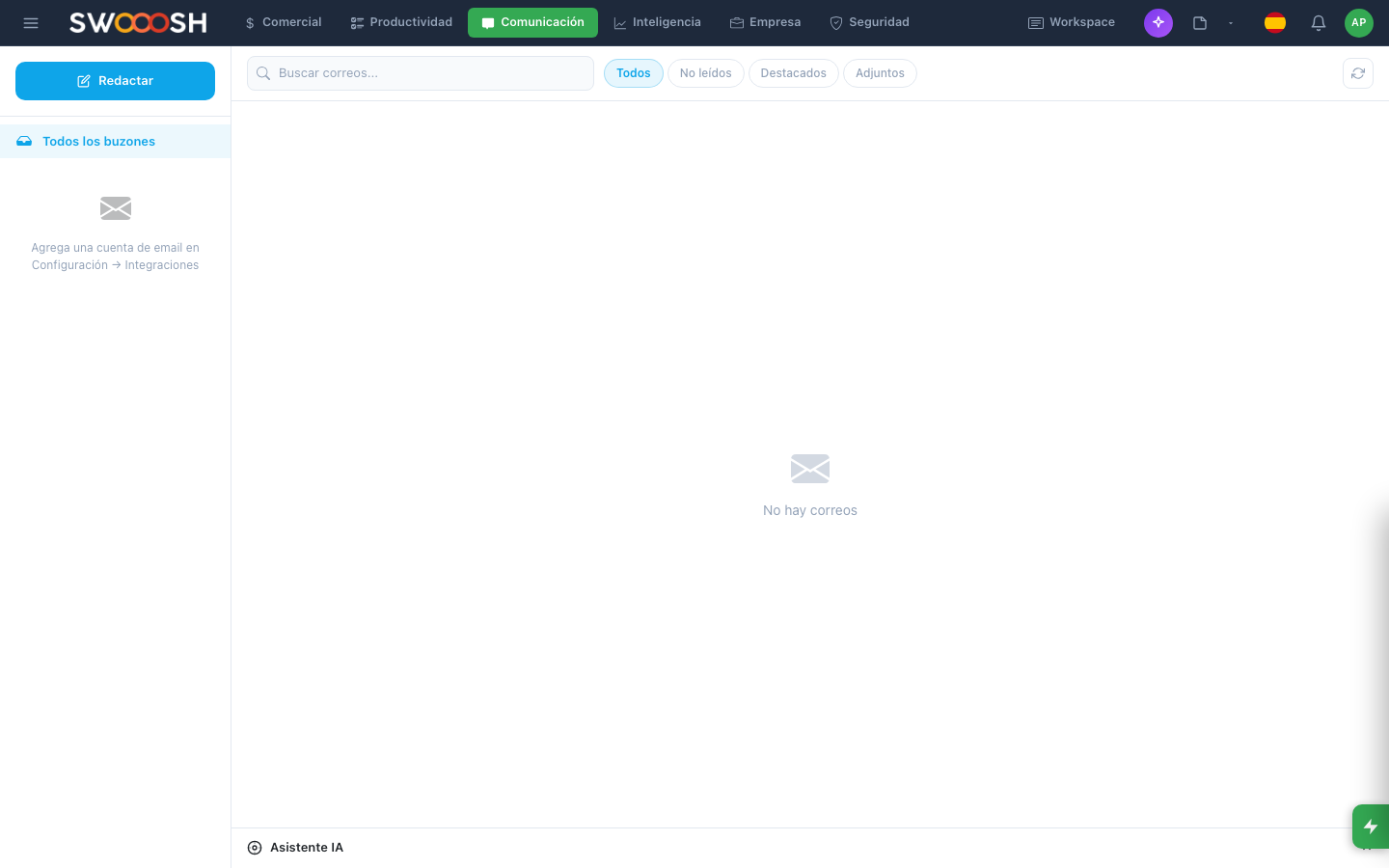
- Left sidebar: your connected accounts, folders (inbox, sent, archived, spam).
- Center: the email list.
- Right: the reading panel for the selected email.
- Top: a toolbar with actions (reply, archive, tag, move).
- KPI bar: how many emails are unread, replied today, average response time.
- Assistant panel (side, collapsible): rules, templates, AI suggestions.
Connect your account
- Go to Settings → Email → Add account.
- Choose: Gmail, Outlook, or a custom server (IMAP/SMTP).
- For Gmail/Outlook: it takes you to their login screen, you authorize.
- For IMAP: you fill in the incoming/outgoing servers, username and password.
- Pilot downloads your latest emails and displays them.
Smart rules
Rules like Gmail Filters but more powerful. Example: 'If the email comes from a domain that has a CRM client, tag it as Client and move it to the Clients folder'.
- Conditions: sender, domain, subject, words in the body, attachment yes/no.
- Actions: move, tag, mark as read, forward, assign.
Templates
If you send the same email 5 times a week ('got your order, I will review it'), save it as a template. When composing you choose the template and the text loads, with variables that get replaced (client name, date, etc.).
Assistant for writing
In the composer, the 'Assistant' button. You ask it things like:
- 'Write me a cordial reply saying yes but asking for more time.'
- 'Improve this draft so it sounds more professional.'
- 'Translate this into English.'
- 'Summarize this email thread for me in 3 points.'
Example: starting the day with email
Monday at 8:00, you open email. 23 new messages. It overwhelms you.
- The rules already moved 15 to their folders (newsletters, app notifications, etc.).
- 8 remain in the main inbox.
- 4 are frequent inquiries: you reply with templates in 5 minutes.
- 3 need a personal reply: you use the assistant to draft a version and adjust it.
- 1 is a client request: you turn it into a task and assign it to Diego.
By 8:30 you have an empty inbox and the pending items are distributed.
How it connects
How it connects: Email
Tips
- Rules are your best friend. One hour invested in rules saves 5 hours a week.
- Keep 3-5 active templates. More than that, and nobody uses them.
- Do not reply to email right away. Block 2 moments of the day (morning and afternoon) and process the inbox then.
- If you turn an email into a task, do not forget to close the loop by replying to the sender when it is completed.
If something does not work
If something fails
I cannot connect my Gmail account.
Enable 'Third-party app access' or use an app password. Better yet, authorize with OAuth (the Gmail flow).
I send an email and it does not arrive.
Check: (1) that it is in 'Sent', (2) that the recipient has the correct email, (3) that your SMTP server is operational (there may be a block if you sent many).
A rule is not being applied.
Rules are evaluated in order. If an earlier rule already tagged/moved the email, the following ones are not evaluated. Reorder the rules with the most specific one at the top.